
2 Installing the host driver
2.1 Installation procedure
There is nothing special about installing the Windows driver for Xillybus or for XillyUSB. The procedure described below is the common method for installing a device driver from a specific location on the disk.
On the first time that Windows detects the PCIe Xillybus IP core during the boot process, it’s likely that a warning bubble that looks like this will appear:
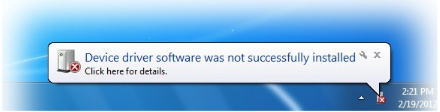
This notification says that new hardware has been found, but no relevant driver has been installed. This situation is normal, and is a sign Windows has detected something it doesn’t yet recognize. The same outcome is expected when a XillyUSB device is connected to the computer for the first time.
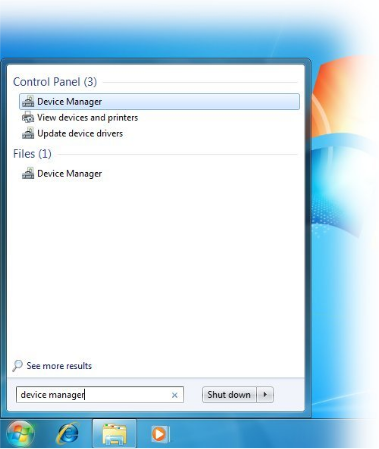
In response to this event, start with running the Device Manager. This is easiest done by clicking on the “Windows start” button and then type “device manager” as shown in the image below. After this, click on the menu item at the top.
The opened Device Manager will look something like this (important part highlighted):
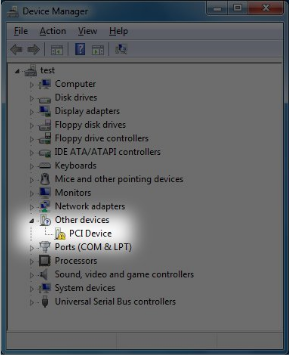
This screenshot relates to the PCIe scenario. For XillyUSB, a new item appears in the “Universal Serial Bus controllers” group.
If a new entry doesn’t appear in the Device Manager, there are several possible causes for this:
-
The FPGA is loaded with the wrong bitstream, or not loaded with any bitstream at all.
-
If the FPGA board receives its power supply from the PC, the bitstream is loaded into the FPGA when the PC computer is powered on. In this usage scenario, there’s a possibility that the BIOS didn’t detect the PCIe interface during boot, because the FPGA loaded the bitstream too slowly: The bitstream must already be inside the FPGA when the BIOS initializes the computer.
Performing a Windows restart (without turning off the computer) is the safe way to fix this. However, performing Action>Scan for New Hardware may work too.
-
Incorrect configuration of the board (jumpers, DIP switches etc.), incorrect pin assignment, wrong frequency of the reference clock etc.
Note that a problem of this sort is because the PCIe block on the FPGA is not detected. Such a problem has nothing to do with Xillybus, which uses the PCIe block (which is supplied by AMD or Altera) for the interface with the PCIe bus.
-
The Xillybus / XillyUSB driver is already installed. In this scenario, the Device Manager should look like the example shown at the end of the installation procedure.
Right-click the “PCI Device” item and pick “Update Driver Software...”. The following window will be opened:
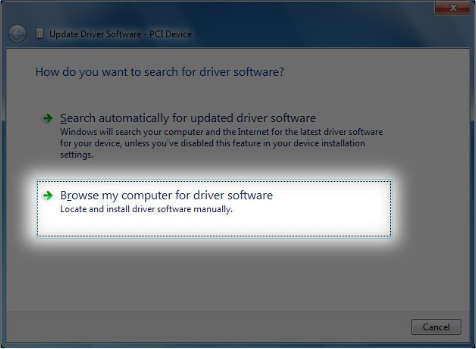
Choose “Browse my computer for driver software”. This is the next window:
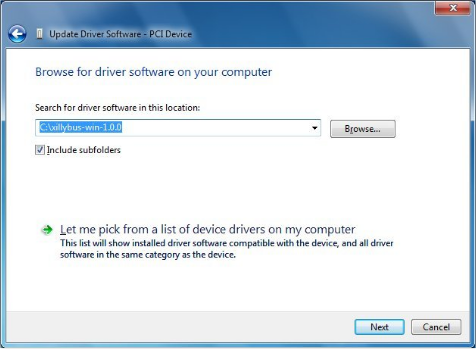
Using the “Browse...” button, navigate to where the driver is stored (after the driver was uncompressed).
The next step is to confirm the installation:
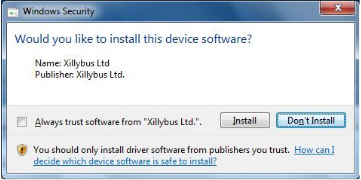
Click on “Install”. The process of installing the driver takes 10-20 seconds on Windows 7. Newer versions of Windows usually require much less time.
The following window announces the successful completion of the installation:
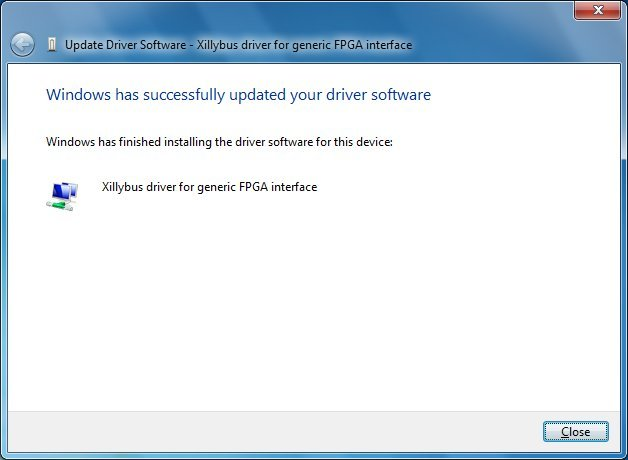
The Device Manager will now show the newly installed device:
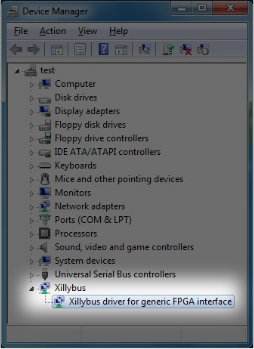
At this point, the driver is installed and has been automatically loaded into the system. This driver will be loaded every time the system carries out boot with the Xillybus IP core on the PCIe bus. XillyUSB’s driver is loaded every time a relevant device is connected to the host.
It’s recommended to set up the Event Viewer to display Xillybus’ log messages, as explained next.
The screenshots shown above relate to Xillybus for PCIe. However, the process is the same for XillyUSB, with minor differences. In particular, the new group in the Device Manager is called “XillyUSB”, and not “Xillybus”.
2.2 The device files
The application computer program communicates with the Xillybus IP core by using the standard file I/O API. But instead of accessing regular files, device files are used in order to work with Xillybus.
The purpose of Xillybus’ driver is hence to create these device files inside the operating system as a mechanism to communicate with the FPGA. These device files are called “Windows objects” in Microsoft’s terminology.
Accessing Windows objects directly from a simple computer program can appear to be an undependable method. However, those who are familiar with Microsoft Windows’ internals know that the software’s interface with hardware is often done exactly like this. It’s indeed uncommon that these device files are exposed directly to application software. Rather, the hardware’s manufacturer often supplies a DLL that allows the program to access the hardware through an API. Behind the scenes, this DLL uses device files in order to accomplish the required functionality.
Because Xillybus’ interface is so simple, such a DLL is unnecessary. Hence the user application software accesses the device files directly. But unfortunately, Windows doesn’t provide a simple method for obtaining a list of Xillybus’ device files. This is because accessing Windows objects is considered an advanced technique. It’s hence necessary to download a utility program in order to obtain this information from the operating system. But as explained below, the list of device files can be obtained from other sources as well.
The WinObj utility (available for download at Microsoft’s site) allows navigating in Windows’ object tree. The Xillybus / XillyUSB device files can be found as symbolic links in the “subdirectory” with the name GLOBAL??. Other well-known Windows objects can be found at the same place, for example C: and COM1:.
There is also a command-line tool, which is named accesschk. This tool can be downloaded from Microsoft’s website. The command for obtaining the names of the Xillybus / XillyUSB device files is:
> accesschk -o \\GLOBAL\?\?
Note that many other global device files are listed with this operation.
Even though it’s possible to obtain a list of device files with these two tools, there is no need to do that: The names of the device files are known in advance.
Xillybus’ device files have a prefix of the form \\.\xillybus_ when the PCIe interface is used. For XillyUSB, the prefix is \\.\xillyusb_nn_.
This is the list of the device files that are generated by the PCIe variant of the demo bundle:
-
\\.\xillybus_read_8
-
\\.\xillybus_write_8
-
\\.\xillybus_read_32
-
\\.\xillybus_write_32
-
\\.\xillybus_mem_8
For a single XillyUSB device that is connected to the host, these are the device files:
-
\\.\xillyusb_00_read_8
-
\\.\xillyusb_00_write_8
-
\\.\xillyusb_00_read_32
-
\\.\xillyusb_00_write_32
-
\\.\xillyusb_00_mem_8
As for a custom IP core that has been generated at the IP Core Factory: The list of device files can be found in the README file, which is included in the downloaded zip file.
Note that in many programming languages (e.g. C/C++) an escape character is required before the backslashes in the file names. So it may be required to write the name of the device file as e.g. \\\\.\\xillybus_read_8.
2.3 Obtaining diagnostic information
The driver for Xillybus / XillyUSB sends diagnostic messages to the operating system’s main event logger. These messages include information about what went wrong when the driver fails to initialize (e.g. there wasn’t enough memory for DMA buffers). Other messages that can be helpful in solving problems are also sent.
The procedure that is outlined next shows how to create a custom view in the Event Viewer. The purpose of this task is to display messages that are related to Xillybus or XillyUSB.
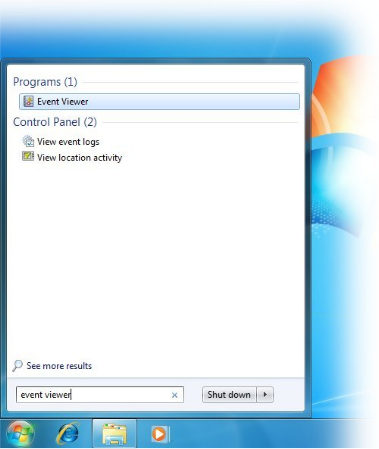
First, open the Event Viewer. This is easiest done by clicking on the “Windows start” button and then type “event viewer” as shown below. Click on the menu item at the top:
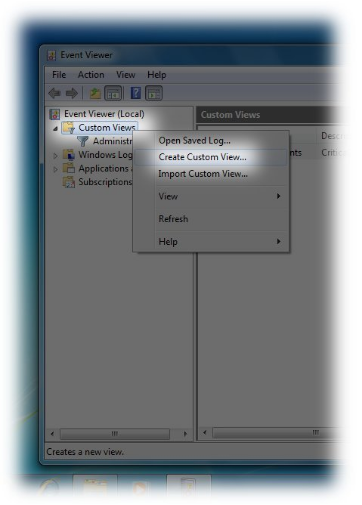
The Event Viewer will open. Right-click “Custom Views” and choose “Create Custom View...” from the menu.
A window with the title “Create Custom View” will be opened. The purpose of this window is to define the filters that select which messages are displayed. Pick “By source”. Choose Xillybus in the drop-down menu. Keep the defaults for the other options.
In order to obtain the messages from XillyUSB instead, select XillyUSB in the menu.
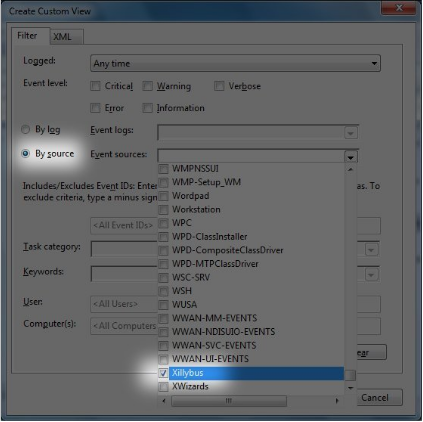
If the Xillybus / XillyUSB entry in the drop-down menu is not found, check if the driver is properly installed.
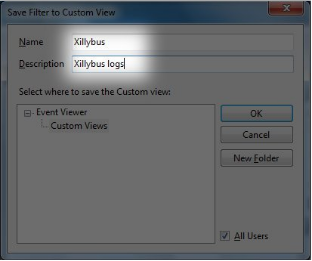
After clicking “OK”, another window will open for the purpose of assigning this custom view a name and a description. This is a matter of personal choice:
After clicking “OK”, the Event Viewer looks something like this:
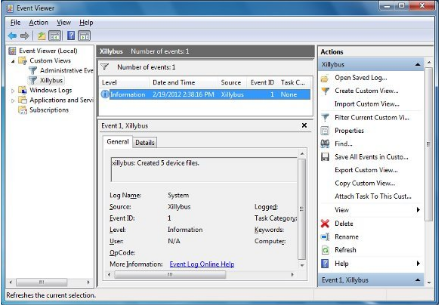
The image above shows one message, which informs that Xillybus has started properly and that 5 device files have been created. This is what should be expected immediately after a successful installation of the driver when the FPGA is loaded with the demo bundle.
The messages are not deleted upon a reboot of the computer. Hence this custom view shows the history since the driver was installed (unless the history is deleted deliberately).
A list of messages from the PCIe driver and their explanation can be found at:
https://xillybus.com/doc/list-of-kernel-messages
It may however be easier to find a specific message by using Google on the message text.
It’s also possible to export the messages to a file. When asking for support, it’s a good idea to send a file that contains the messages from the driver. These messages often contain valuable information.
In order to create such a file, choose the “Action” menu item and then choose “Save All Events in a Custom View As...”:
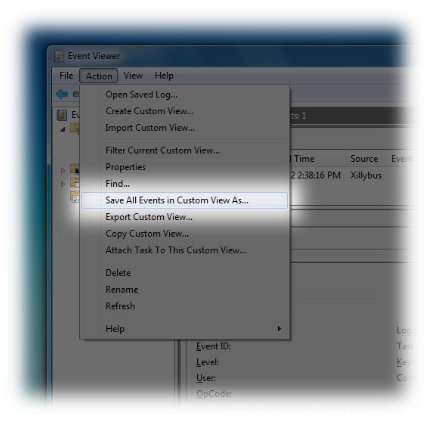
A file selection window will be opened. For the purpose of asking for help, choose CSV as the output format.