
3 The implementation of the demo bundle
3.1 Overview
There are three possible methods for the implementation of Xillybus’ demo bundle, and obtaining a bit stream file (SOF):
-
Using the project files in the bundle as they are. This is the simplest way, and is suitable when working with boards that appear in the list of demo bundles.
-
Modifying the files to match a different FPGA. This is suitable when working with other boards, and/or other FPGAs. More information about this in paragraph 4.4.
-
Setting up the Quartus projects from scratch. Possibly necessary when integrating the demo bundle with existing application logic. Further details in paragraph 4.3.
In the remainder of this section, the first work procedure is detailed, which is the simplest and most commonly chosen one. The other two work procedures are based upon the first one, with differences that are detailed in the paragraphs given above.
IMPORTANT:
The evaluation bundle is configured for simplicity rather than performance. Significantly better results can be achieved for applications
requiring a sustained and continuous data flow, in particular for high-bandwidth cases. For these scenarios, a custom IP core is easily built
and downloaded with the web application.
3.2 File outline
The bundle consists of the following directories:
-
core – The Xillybus IP core is stored here
-
instantiation templates – Contains the instantiation templates for the core (in Verilog and VHDL)
-
verilog – Contains the project file for the demo bundle and the sources in Verilog (in the ’src’ subdirectory)
-
vhdl – Contains the project file for the demo bundle and the sources in VHDL (in the ’src’ subdirectory)
-
pcie_core (PCIe bundles only) – Altera’s PCIe IP core is built here before building the rest of the bundle.
-
quartus-essentials (XillyUSB bundles only) – Various files that are common to the Verilog and VHDL projects.
Note that each demo bundle is intended for a specific board, as listed at the site’s web page from which the demo bundle was downloaded. If another board is used, or if certain configuration resistors have been added or removed from the board, the constraints file must be edited accordingly.
Also note that the vhdl directory contains Verilog files, but none of these should need significant changes.
The interface between Xillybus’ IP core and the application logic takes place in the xillydemo.v file or xillydemo.vhd file (in the respective ’src’ subdirectories). This is the file to edit in order to try Xillybus with your own data.
3.3 Building the demo bundle
3.3.1 Opening the project
Depending on your preference, double-click the ’xillydemo.qpf’ file in either the ’verilog’ or ’vhdl’ subdirectory. Quartus will launch and open the project with the correct settings.
If a series-V (e.g. Cyclone V) or series-10 (e.g. Arria 10) FPGA is used, continue with paragraph 3.3.3.
Otherwise, build the PCIe block as described next.
3.3.2 Building the PCIe block (Arria II and series-IV FPGAs)
IMPORTANT:
Note that this paragraph does not relate to series-V FPGAs and later.
If a Quartus version later than 12.0 is used, the megafunction variation file needs manual editing. Otherwise, the MegaWizard Plug-In Manager will refuse to accept this file.
If editing is required, open the file in the pcie_core/ directory (e.g. pcie_core/pcie_s4_4x.v) with a text editor. Replace all the occurrences of the older Quartus version with the one used. Just change the version number (e.g. replace 12.0 with 15.0).
Typically, lines like or similar to the following need modification:
// megafunction wizard: %IP Compiler for PCI Express v12.0%
and
// Retrieval info: <MEGACORE title="IP Compiler for PCI Express" version="12.0"
and possibly also
// Generated using ACDS version 12.0 178
Launch the MegaWizard Plug-In Manager from within Quartus:
-
Quartus 14 and later: Open a Command Prompt Window (or a terminal in Linux). Make sure that Quartus’ utilities are in the execution path (typically /some/path/quartus/bin/). Type “qmegawiz” to launch the MegaWizard Plug-In Manager.
-
Quartus 13 and earlier: In the Tools menu, pick MegaWizard Plug-In Manager.
The following (or similar) window should appear:
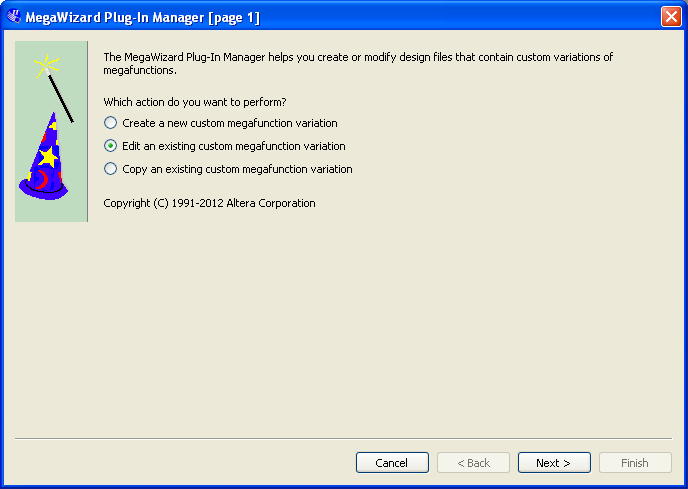
Choose “Edit an existing custom megafunction variation”, and click Next.
Next, a window (not shown here) requests the custom megafunction variation file to edit. Pick the pcie_c4_1x.v (or similar) file in the pcie_core directory (only one suitable file will be present). Typically, navigating one directory up from the starting point reveals the directory to enter.
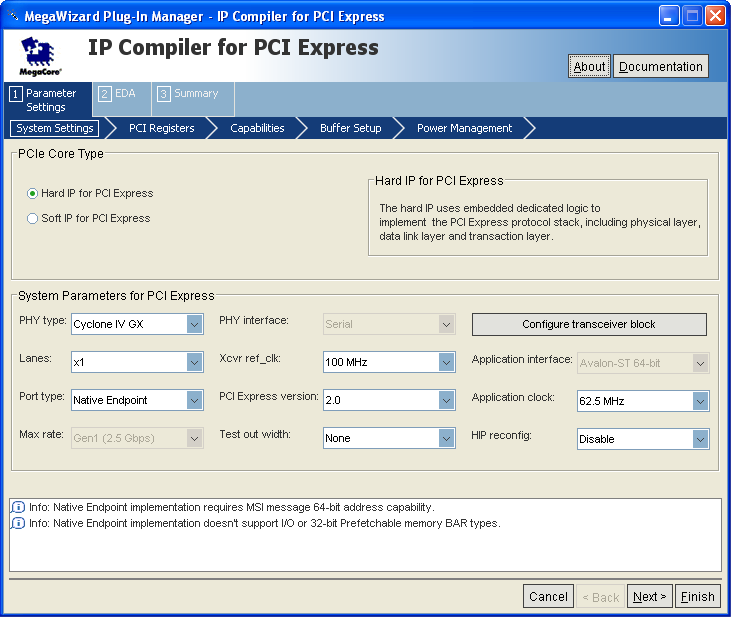
After a notice saying “Loading MegaWizard...”, a window like this appears:
If the MegaWizard refuses to open the file,
saying “Specify a valid MegaWizard-generated variation file”, there are a few possible reasons for this problem:
You’re working with a recent FPGA (e.g. Cyclone V). In this case there’s no need to build the PCIe block at all.
The variation file wasn’t edited properly to change the Quartus revision number to the current one. Please refer to the beginning of
this section.
If MegaWizard rejects a file for being invalid, editing the file and attempting to load it again will not help. The MegaWizard program
must be exited and invoked again from the command prompt, or it will continue to reject the file, even if it has been edited properly.
The window that opens and the parameters it presents vary from one FPGA family to another (in particular, a title different from “IP Compiler for PCI Express” is fine).
No changes should be made. Just click “Finish”. A window like the following shows the progress (its final state is shown here):
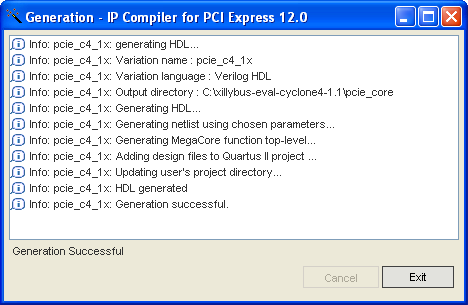
Once finished, click Exit. The following window may appear immediately afterwards, offering to add the Quartus IP (QIP) file to the project.
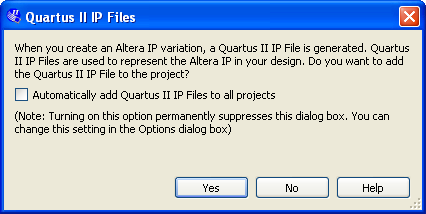
The preferred answer is “No”, since adding the QIP file to the project indirectly adds an unnecessary SDC file, containing constraints which are all ignored anyhow. Even though it’s harmless having this QIP file in the project, it causes a lot of warnings during the compilation, typically two warnings for each ignored constraint in the SDC file.
3.3.3 Compilation of the design files
In Quartus’ main window, click “Compile Design” to create the FPGA bitstream file. Note that on some Quartus revisions, the default procedure for compilation may be set to “Rapid Recompile”, which allows only “Rapid Recompile” in the task pane. If this is the case, change it to “Compilation”, and proceed.
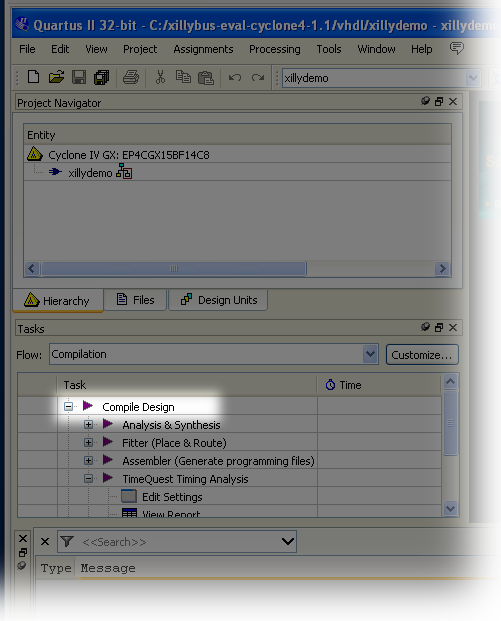
The process produces 20-50 warnings (depending on whether the QIP file was included in the project), but should end with a dialog box saying “Full Compilation was successful”.
It’s mandatory to verify that no errors nor Critical Warnings were generated (the tabs at the bottom of the main Quartus window indicate the number of messages for each type).
At the end of the process, the programming file can be found as xillydemo.sof.
3.4 Programming the FPGA
In early development stages, it’s recommended to load the FPGA via JTAG. This is usually done with an USB Blaster / Altera Download Cable (on-board or external). Please refer to your board’s instructions on how to load the FPGA via JTAG.
For XillyUSB projects, the FPGA can be loaded and reloaded at any time, even while the USB interface is connected to a working computer.
With PCIe projects, the FPGA must be loaded with the bitfile before the computer is powered up: The computer expects the PCIe peripheral to be in a proper state when it powers up, and may not tolerate any surprises afterwards.
Therefore, do not reload the FPGA as long as the host is running. Even though the PCIe specification requires support for hotplugging, motherboards don’t normally expect a PCIe card to disappear and then reappear. Accordingly, some motherboards may not respond correctly. Nevertheless, reloading of the FPGA, while the operating system is running, works on some motherboards.
Xillybus’ driver is designed to respond sanely to hotplugging, however there is nothing to assure the computer’s general stability. This is discussed on this page:
https://xillybus.com/doc/hot-reconfiguration
If the FPGA powers up and is loaded from a flash memory along with powering up the computer, it’s essential to ensure that the FPGA is loaded quickly enough, so the PCIe device is present when the BIOS scans the bus.