
3 Xillybus Lite on projects not using Xillinux
3.1 Applying the IP core
The procedure described next is based upon AMD Platform Studio 14.2 (XPS), but later versions are expected to behave much the same.
To add Xillybus Lite to an existing project, follow the steps below:
-
Download the Xillybus Lite bundle from https://xillybus.com/xillybus-lite.
-
Copy the xillybus_lite_v1_00_a folder from Xillybus Lite’s bundle’s “pcores” folder into your XPS project’s “pcores” folder. The latter may be empty if the XPS project was just generated.
-
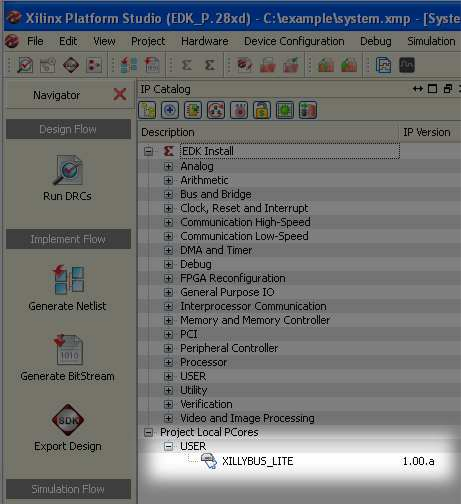
With the relevant project open in XPS, click Project > Rescan User Repositories. As a result, a “USER” entry will appear in the IP Catalog to the left, under “Project Local PCores”. Expand this entry, and find the XILLYBUS_LITE core.
-
Double-click XILLYBUS_LITE. Confirm the popup window asking whether the IP core should be added to the design.
-
An XPS Core Config window appears next. Just click “OK”. There is no need for changes.
-
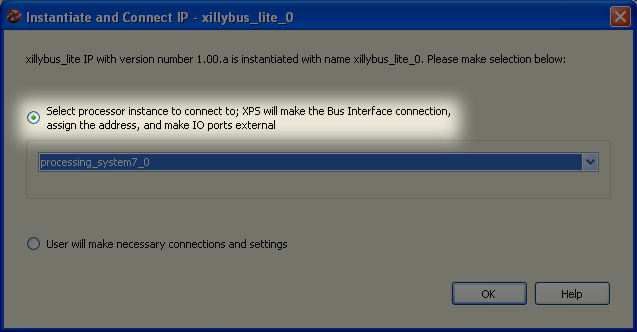
On the following window, “Instantiate and Connect IP” allow XPS to make the bus interface connections by choosing the upper radio button.
-
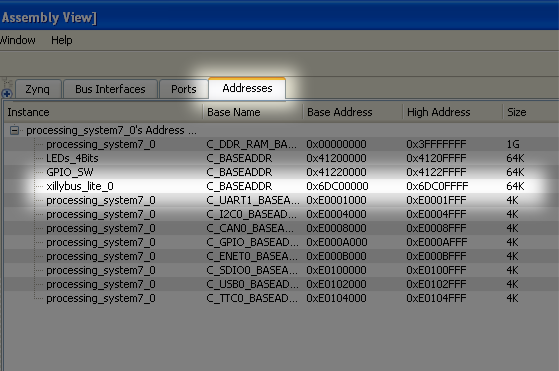
Pick the “Addresses” tab and take note of the address range allocated for xillybus_lite_0 for future reference (Base address and Size). It’s also possible to change this range as necessary.
-
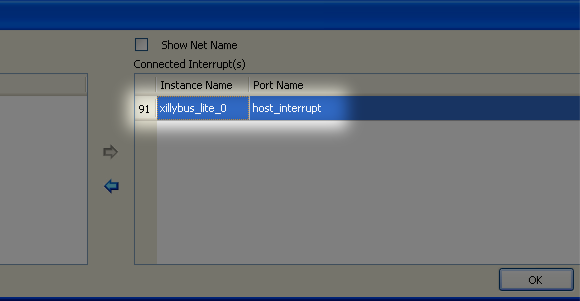
Pick the “Zynq” tab and click on the IRQ box. Select the “host_interrupt” port in the list of unconnected interrupts, and click on the arrow in the middle to move it to the list of connected interrupts. Take note of the interrupt number (91 in the sample screenshot).
-
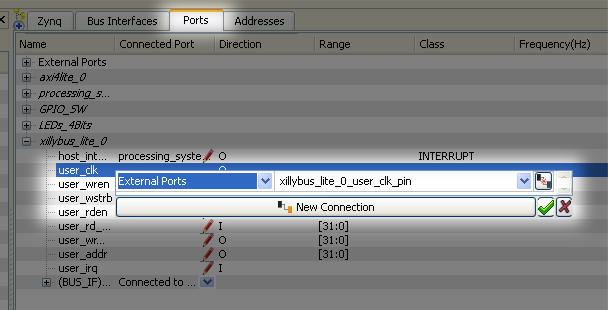
Pick the “Ports” tab and expand the “xillybus_lite_0” entry. For each of the eight signals with “user_” prefix, click on the empty space to the right of the port’s name, and make the port external:
Pick “External Port” on the drop-down selection box, and accept the default wire name given (or possibly change it). Confirm by clicking the check mark or pressing ENTER for each port.
IMPORTANT:
The host_interrupt port is set to EDGE_RISING. Don’t change it to level triggered, or an interrupt may lock up the
system.
The XPS project is now ready for build (with e.g. “Create Netlist”).
The processor’s module (usually named “system”) will have 8 additional ports. These should be added in this module’s instantiation (and architecture description in VHDL).
For example, in Verilog
...
  wire        user_clk;
  wire        user_wren;
  wire [3:0] user_wstrb;
  wire        user_rden;
  wire [31:0] user_rd_data;
  wire [31:0] user_wr_data;
  wire [31:0] user_addr;
  wire        user_irq;

...

  system
    system_i (

      ...

         .xillybus_lite_0_user_clk_pin ( user_clk ),
         .xillybus_lite_0_user_wren_pin ( user_wren ),
         .xillybus_lite_0_user_wstrb_pin ( user_wstrb ),
         .xillybus_lite_0_user_rden_pin ( user_rden ),
         .xillybus_lite_0_user_rd_data_pin ( user_rd_data ),
         .xillybus_lite_0_user_wr_data_pin ( user_wr_data ),
         .xillybus_lite_0_user_addr_pin ( user_addr ),
         .xillybus_lite_0_user_irq_pin ( user_irq )
    );
All signals except user_rd_data and user_irq are outputs from the processor.
3.2 Modifying the device tree
The device tree for the existing system must be obtained, so that an entry for Xillybus Lite can be added. It’s important to start from the device tree in effect, or the system’s configuration may change or possibly even fail in the boot process.
For Xillinux 2.0 and later, the device tree sources in use are part of the kernel source, which can be downloaded from Github. Please refer to section 6 in Getting started with Xillinux for Zynq-7000 on how to obtain this.
In earlier revisions of Xillinux, the device tree source is in the /boot directory as e.g. devicetree-3.3.0-xillinux-1.1.dts.
If the device tree source isn’t available, it can be reconstructed from its binary, which is available in the same directory from which boot.bin is loaded on powerup. A tutorial explaining this issue (and others related to the device tree) can be found at
https://xillybus.com/tutorials/device-tree-zynq-1
An entry as follows should be added to the DTS file, in the segment containing bus peripherals (within the curly brackets enclosing axi@0):
xillybus_lite@6dc00000 {
 compatible = "xillybus_lite_of-1.00.a";
 reg = < 0x6dc00000 0x10000 >;
 interrupts = < 0 59 1 >;
 interrupt-parent = <&gic>;
};
IMPORTANT:
This sample entry matches the screenshots shown above, and not the settings used in Xillinux.
The following changes may be needed in the DTS entry to match your instance of the peripheral in the XPS project:
-
Set the base address, taken from the address map of XPS, in the “reg” assignment and in the node’s name (0x6dc00000 above, without the “0x” prefix in the node’s name).
-
Set the second argument of “reg” to the number of bytes allocated from the base address (0x10000 above)
-
Set the second argument of “interrupts” to the interrupt number given in XPS minus 32. In the example, XPS allocated interrupt 91 to the peripheral, and consequently 91 - 32 = 59.
-
If the device tree was obtained by virtue of a reverse compilation from a binary or /proc/device-tree/, it will not have the “gic” label defined. Since all devices in the system use the same interrupt controller, it’s fine to copy the numeric value from other “interrupt-parent” assignment in the device tree. In almost all cases, this simply means replacing &gic with the value 0x1.
After editing the device tree source file, run a compilation to turn it into a binary blob (DTB) with the Device Tree Compiler (DTC). This compiler is part of the Linux kernel tree.
On a running Xillinux system, this can be done as follows. The directory of the kernel tree may vary, depending on the Xillinux distribution used.
# cd /usr/src/kernels/3.3.0-xillinux-1.1+/
# scripts/dtc/dtc -I dts -O dtb -o devicetree.dtb my_device_tree.dts
Then overwrite the existing devicetree.dtb file on the media used for boot, with the file just generated.
Note that Xillinux can be used for compilation of a device tree that is intended for a system other than Xillinux.
3.3 Compilation of the Linux driver
The driver can be found in the Xillybus Lite bundle, in the “linuxdriver” directory.
There are two options for its compilation:
-
cross compilation for the ARM processor against the intended kernel’s source code (or at least its headers).
-
Direct compilation on the Zynq board itself is possible, if the intended distribution has the GNU tools and kernel headers installed.
Xillybus Lite relies on several kernel options, in particular the UIO option (CONFIG_UIO) being enabled at least as a module.
In what follows, a direct compilation on the board is assumed. This can be done in the Xillinux distribution, but isn’t necessary for running Xillybus Lite on Xillinux (since the driver is already installed). On the other hand, if compilation of the driver has been done on Xillinux (and hence against Xillinux’ kernel headers), the binary may not work on other kernels.
First change directory:
$ cd /path/to/linuxdriver
and type “make” to compile the driver. The session should look something like this:
$ make
make -C /lib/modules/3.3.0/build SUBDIRS=/tmp/lite/linuxdriver modules
make[1]: Entering directory `/usr/src/kernels/3.3.0'
 CC [M] /tmp/lite/linuxdriver/xillybus_lite_of.o
 Building modules, stage 2.
 MODPOST 1 modules
 CC     /tmp/lite/linuxdriver/xillybus_lite_of.mod.o
 LD [M] /tmp/lite/linuxdriver/xillybus_lite_of.ko
make[1]: Leaving directory `/usr/src/kernels/3.3.0'
Note that the compilation of the kernel module is done specifically for the kernel running during the compilation. If another kernel is used, type “make TARGET=kernel-version” where “kernel-version” is the intended kernel version, as it appears in /lib/modules/.
The session’s output may vary slightly, but no errors or warnings should appear.
In particular, if these warnings appear,
WARNING: "__uio_register_device" [xillybus_lite_of.ko] undefined!
WARNING: "uio_unregister_device" [xillybus_lite_of.ko] undefined!
it means that the intended kernel lacks the UIO option, and inserting the driver into the kernel will most likely fail.
3.4 Installing the driver
Copy the xillybus_lite_of.ko file to some existing driver subdirectory, and run depmod as follows (assuming that the intended kernel is currently running):
# cp xillybus_lite_of.ko /lib/modules/$(uname -r)/kernel/drivers/char/
# depmod -a
The installation does not load the driver into the kernel immediately. It will do so on the next boot of the system if a Xillybus Lite peripheral is discovered. How to load the driver manually is shown next.
3.5 Loading and unloading the driver
In order to load the driver (and start working with Xillybus Lite), type as root:
# modprobe xillybus_lite_of
This will make the Xillybus Lite device file (/dev/uio0) appear.
Note that this should not be necessary if a Xillybus Lite peripheral was present when the system carried out boot and the driver was already installed as described above.
To see a list of modules in the kernel, type “lsmod”. To remove the driver from the kernel, run:
# rmmod xillybus_lite_of
This will make the device file vanish.
If something seems to have gone wrong, please check the /var/log/syslog log file for messages containing the word “xillybus”. Valuable clues are often found in this log file.
If no /var/log/syslog log file exists, it’s probably /var/log/messages instead.
If an “unknown symbol” error regarding __uio_register_device or similar appears in the log files, it indicates that the running kernel lacks the UIO configuration option.