
3 Building Xillinux
3.1 Overview
The Xillinux distribution is intended as a development platform, and not just a demo: A ready-for-use environment for custom logic development and integration is built during its preparation for running on hardware. Accordingly, the preparation time for the first test run is a bit long (typically 30 minutes, most of which consist of waiting for Altera’s tools). However, this long preparation shortens the cycle for integrating custom logic.
To perform boot of the Xillinux distribution from a microSD card, it must have three components:
-
An initial boot image environment, residing in a special partition, consisting of the U-boot loader.
-
A small FAT filesystem, with files containing the configuration bitstream for the FPGA part, the Linux kernel binary and its device tree.
-
A root file system mounted by Linux.
All of this, except the FPGA’s bitstream, is already included in the microSD image for Xillinux.
The various operations for preparing the microSD are detailed step by step in this section. Most of the time is spent on preparing the FPGA bitstream.
This procedure assumes a SoCKit board is used. It consists of the following steps, which must be done in the order outlined below:
-
Unzipping the boot image kit
-
Generating the processor’s wrapper and bus infrastructure
-
Implementing the main FPGA project and converting the bitstream to the correct format.
-
Writing the raw Xillinux image to the microSD card
-
Copying the bitstream file into the microSD card
How to work with other boards is discussed in paragraph 5.2.
3.2 Unzipping the boot image kit
Unzip the previously downloaded xillinux-eval-sockit-XXX.zip file into a working directory.
IMPORTANT:
The path to the working directory must not include white spaces. In particular, the Desktop is unsuitable, since its path includes
“Documents and Settings”.
The bundle consists of the following directories:
-
verilog – Contains the project file for the main logic and some sources in Verilog (in the ’src’ subdirectory).
-
vhdl – Contains the project file for the main logic and some source files. The file in VHDL to edit is in the ’src’ subdirectory.
-
core – Precompiled binaries of the Xillybus IP cores.
-
soc_system – ARM processor wrapper and bus infrastructure.
-
instantiation templates – Contains the instantiation templates in Verilog and VHDL.
Note that both ’verilog’ and ’vhdl’ directories also contain the QSF file for the SoCKit board. This file must be edited if another board is used.
Also note that the vhdl directory contains Verilog files, but none of them should need editing by the user.
The interface with the Xillybus IP core takes place in the xillydemo.v or xillydemo.vhd files in the respective ’src’ subdirectories. This is the file to edit in order to try Xillybus with your own data sources and sinks.
3.3 Generating the processor’s wrapper
Open Quartus II, possibly by double-clicking the ’xillydemo.qpf’ file in either the ’verilog’ or ’vhdl’ subdirectory in the boot image kit.
Within Quartus, open the Qsys project by picking “File > Open...” and navigate upwards one directory, enter the soc_system directory, and choose soc_system.qsys. The Qsys tool launches and opens the processor wrapper project.
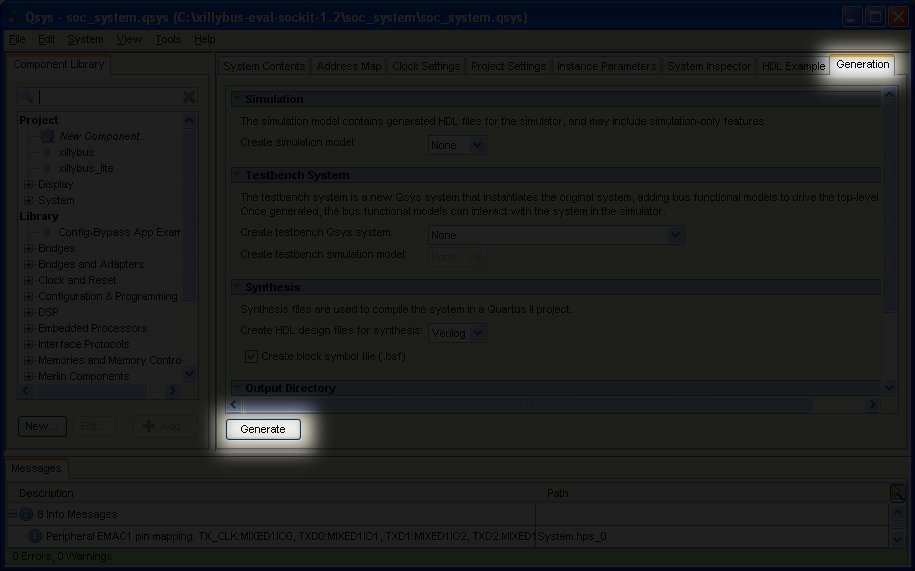
Pick the "Generation" tab near the top of the window, and click “Generate” (near the bottom)
The process takes a couple of minutes or so, with the progress window ending up like this:
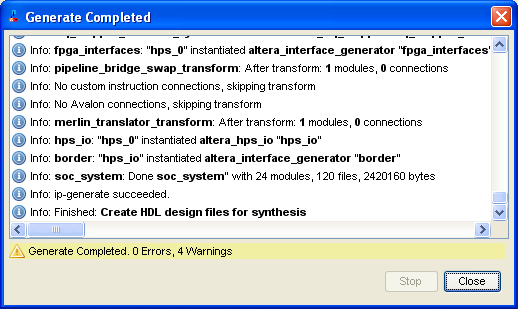
Close the progress windows as well as the Qsys window. There is no need to repeat this process in the future.
3.4 Generating the raw bitstream file
This step is taken after completing the generation of the processor’s wrappers, as described in paragraph 3.3.
Depending on your preference, double-click the ’xillydemo.qpf’ file in either the ’verilog’ or ’vhdl’ subdirectory. Quartus II will launch and open the project with the correct settings. If you just finished with Qsys, chances are that you already have Quartus II open. In that case, just verify that your preferred language was chosen (pick Verilog if you don’t care).
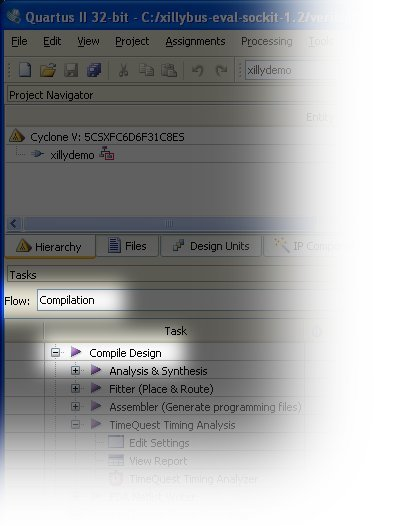
Make sure that the “flow” is set to “Compilation” and click “Compile Design” to create the FPGA programming file, as shown in this image.
The process produces around 100 warnings, but should end with a dialog box informing that the “Full Compilation was successful”. Critical warnings are produced, but no errors should be tolerated. Also, it’s always mandatory to verify, after a compilation, that no warning said “Timing requirements not met” (332148). This is in particular true later on, when running a compilation of the design after making your own changes in the Verilog/VHDL sources.
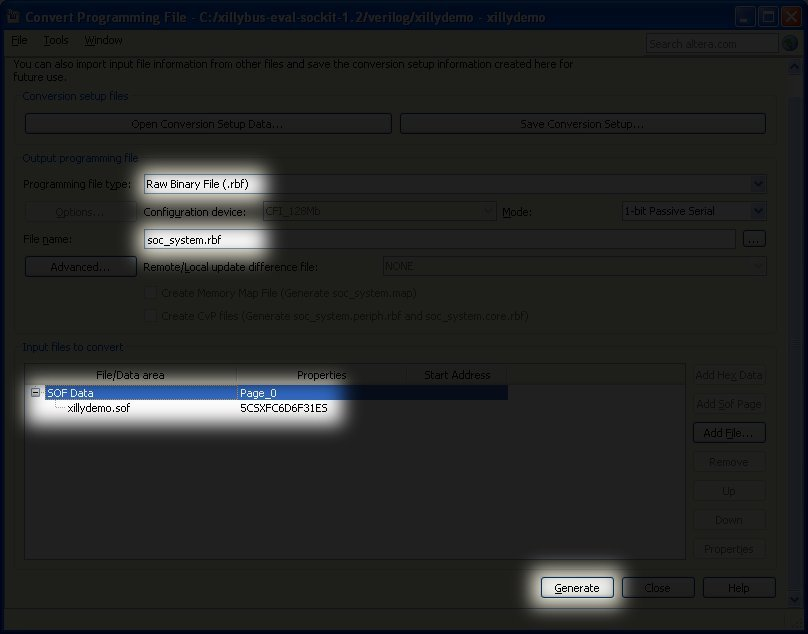
Finally, convert the obtained programming file to the necessary format. In Quartus II, pick File > Convert Programming Files... and pick Raw Binary File (.rbf) as the Programming file type. Just below, set the “File name” to soc_system.rbf.
In the “Input files to convert” area, click “SOF Data” and then “Add File...” to the right. Choose xillydemo.sof.
Then click “Generate” at the bottom right. Close the window after successfully generating the file. The soc_system.rbf should be copied to the MicroSD card, as explained in paragraph 3.6.
IMPORTANT:
Do not enable compression when generating the .rbf file (stick to the default). soc_system.rbf should be 6-7
MBytes.
3.5 Loading the microSD with the image
3.5.1 General
The purpose of this task is to write the downloaded microSD card image file to the device. The image was downloaded as a file named xillinux-1.1-sockit.img.gz (or similar), and is a gzip-compressed image of the microSD card (the soc_system.rbf file needs to be added to it though).
This image should be uncompressed and then written to the microSD card’s first sector and on. There are several ways and tools to accomplish this. A few methods are suggested next.
The image contains a partition table, a partly populated FAT file system for placing the boot image, a raw boot partition and the Linux root file system of ext4 type. Only FAT partitions are detected by almost all Windows computers, so the microSD card will appear to be very small in capacity (47 MB or so).
Writing a full disk image is not an operation intended for plain computer users, and therefore requires special software on Windows computers and extra care with Linux. The following paragraphs explain how to do this on either operating system.
IMPORTANT:
Writing an image to the microSD irrecoverably deletes any previous content it may contain. It’s warmly recommended to make a copy
of its existing content, possibly with the same tools used to write the image.
3.5.2 Loading the image (Windows)
On Windows, a special application is needed to copy the image, such as the USB Image Tool. This tool is suitable when a USB adapter is used to access the microSD card.
Some computers (laptops in particular) have an SD slot built in, and may need to use another tool, e.g. Win32 Disk Imager. This may also be the case when running Windows 7.
Both tools are available free for downloading from various sites on the web. The following walkthrough assumes using the USB Image Tool.
For a Graphical interface, run “USB Image Tool.exe”. When the main window shows up, plug in the USB adapter, select the device icon which appears at the top left. Make sure that you’re in “Device Mode” (as opposed to “Volume Mode”) on the top left drop-down menu. Click Restore and set the file type to “Compressed (gzip) image files”. Select the downloaded image file (xillinux-1.1-sockit.img.gz). The whole process should take about 4-5 minutes. When finished, unmount the device (“safely remove hardware”) and unplug it.
On some machines, the GUI will fail to run with an error saying the software initialization failed. In that case, the command line alternative can be used, or a Microsoft .NET framework component needs to be installed.
Alternatively, this can be done from the command line (which is a quick alternative if the attempt to run GUI fails). This is done in two stages. First, obtain the device’s number. On a DOS Window, change directory to where the application was unzipped to and go (typical session follows):
C:\usbimage>usbitcmd l

USB Image Tool 1.57
COPYRIGHT 2006-2010 Alexander Beug
http://www.alexpage.de

 Device | Friendly Name                     | Volume Name | Volume Path | Size
------------------------------------------------------------------------------
    2448 | USB Mass Storage Device |                           | E:\        | 2014 MB
(Note that the character after "usbitcmd" is the letter “l” and not the number “1”)
Now, when we have the device number, we can actually do the writing (“restore”):
C:\usbimage>usbitcmd r 2448 \path\to\xillinux-1.1-sockit.img.gz /d /g

USB Image Tool 1.57
COPYRIGHT 2006-2010 Alexander Beug
http://www.alexpage.de

Restoring backup to "USB Mass Storage Device USB Device" (E:\)...ok
Again, this should take about 4-5 minutes. And of course, change the number 2448 to whatever device number you got in the first stage, and replace \path\to with the path to where the microSD card’s image is stored on your computer.
3.5.3 Loading the image (Linux)
IMPORTANT:
Raw copying to a device is a dangerous task: A trivial human error (typically choosing the wrong destination disk) can result in
irrecoverable loss of all data in the computer’s hard disk. Think before pressing Enter, and consider doing this in Windows if you’re not used
to Linux.
As just mentioned, it’s important to detect the correct device as the microSD card. This is best done by plugging in the USB connector, and looking for something like this in the main log file (/var/log/messages or /var/log/syslog):
Sep 5 10:30:59 kernel: sd 1:0:0:0: [sdc] 7813120 512-byte logical blocks
Sep 5 10:30:59 kernel: sd 1:0:0:0: [sdc] Write Protect is off
Sep 5 10:30:59 kernel: sd 1:0:0:0: [sdc] Assuming drive cache: write through
Sep 5 10:30:59 kernel: sd 1:0:0:0: [sdc] Assuming drive cache: write through
Sep 5 10:30:59 kernel: sdc: sdc1
Sep 5 10:30:59 kernel: sd 1:0:0:0: [sdc] Assuming drive cache: write through
Sep 5 10:30:59 kernel: sd 1:0:0:0: [sdc] Attached SCSI removable disk
Sep 5 10:31:00 kernel: sd 1:0:0:0: Attached scsi generic sg0 type 0
The output may vary slightly, but the point here is to see what name the kernel gave the new disk. “sdc” in the example above.
Uncompress the image file:
# gunzip xillinux-1.1-sockit.img.gz
Copying the image to the microSD card is simply:
# dd if=xillinux-1.1-sockit.img of=/dev/sdc bs=512
You should point at the disk you found to be the flash drive, of course.
IMPORTANT:
/dev/sdc is given as an example. Don’t use this device unless it happens to match the device recognized on your
computer.
And verify
# cmp xillinux-1.1-sockit.img /dev/sdc
cmp: EOF on xillinux-1.1-sockit.img
Note the response: The fact that EOF was reached on the image file means that everything else compared correctly, and that the flash drive has more space than actually used. If cmp says nothing (which would normally be considered good) it actually means something is wrong. Most likely, a regular file “/dev/sdc” was generated rather than writing to the device.
3.6 Copying the soc_system.rbf file into the microSD card
Unplug the USB adapter and then connect it back to the computer. This is necessary to make sure that the computer is up to date with the microSD card’s partition table. If necessary, mount the first partition (e.g. /dev/sdb1). Most computers will do this automatically.
Then copy the soc_system.rbf (which was generated in paragraph 3.4) to the FAT file system on the microSD card. On Windows systems, this is the only “disk” the system will display. On Linux systems, it’s the first (and smaller) partition. Either way, the correct destination is easily recognized by its existing content, which is only two files: ’socfpga.dtb’ and ’uImage’.
When done, unmount the microSD card properly, and unplug it from the computer, e.g.
> umount /mnt/sd
If the SoCKit board is already running Xillinux, it’s possible to update the soc_system.rbf from the board itself. To mount the FAT filesystem on Xillinux, go
> mkdir /mnt/sd
> mount /dev/mmcblk0p1 /mnt/sd
and access the file system at /mnt/sd/. Note that if there’s a problem with the new soc_system.rbf itself (e.g. it’s compressed) or something else is done improperly, the board may not perform boot next time. So by all means, an alternative means for accessing the microSD card must be kept handy.