
4 Performing the boot
4.1 Jumper and DIP switch settings
For the board to perform boot from the microSD card, there is probably no need to make any changes with the jumpers, but it’s best to make sure that they match the setting shown in the first image below.
Only jumpers J15-J19 are relevant for the boot of the system. The other two jumpers are related to the LCD backlight and HSMC interface voltage level.
The DIP switches (at the board’s back side) will usually need to be changed as shown in the second image below.
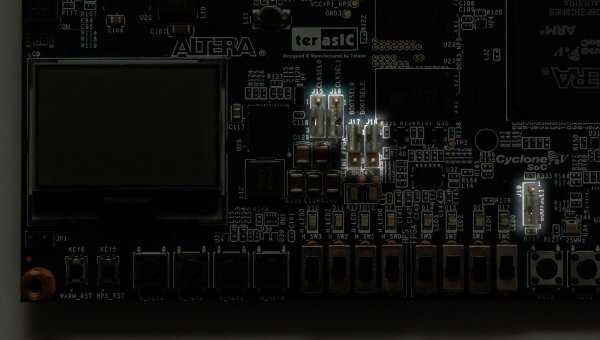
Front side of the board, jumper settings highlighted.
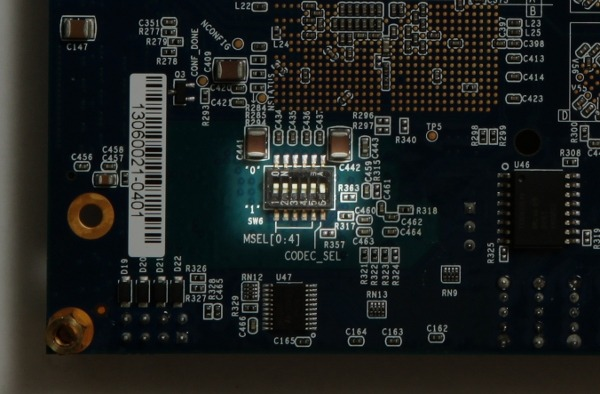
Back side of the board, DIP switch highlighted. All switches, except the rightmost, are pushed upwards.
4.2 Attaching peripherals
IMPORTANT:
If the USB port is required for use (e.g. attaching a mouse and keyboard), some peripheral must be connected to the OTG USB port
when Linux performs boot (even a USB hub with nothing connected to it). This is required for Linux to determine the roles between the
processor and what is connected to it, as both can be host on an OTG port.
The following general-purpose hardware should be attached to the board:
-
A computer monitor to the analog VGA connector. Since Xillinux produces a VESA-compliant 1024x768 @ 60Hz signal through the analog VGA plug, it’s almost certain that any computer monitor will suffice.
-
A mouse and keyboard to the USB OTG connector, through a USB female cable (not included in the SoCKit hardware kit). The system will perform boot in the absence of these, and there is no problem connecting and disconnecting the keyboard and mouse as the system runs, as long as some peripheral (or just a USB hub) was connected when Linux performed its boot sequence. The system detects and works with whatever keyboard and mouse it has connected at any given moment.
-
The Ethernet port is optional for common network tasks. The Linux machine configures the network automatically if the attached network has a DHCP server.
-
The UART USB port is optionally connected to a PC, but is redundant in most cases. Some of the boot messages are sent there, and a shell prompt is issued on this interface when the boot completes.
This is useful when either a PC monitor or a keyboard is missing or don’t work properly.
Note that if this port is connected to a computer, some terminal software must run on this computer. Otherwise, the boot process may stop while Linux waits for its boot messages to be read. It’s fine to perform boot with this port unconnected.
4.3 Powering up the board
This paragraph describes what to expect when powering up the system. In the descriptions below, the board is viewed so that the red power button is at the upper left, and the row of eight LEDs at the bottom, as shown in the images on the previous page.
IMPORTANT:
Xillinux’ root file system permanently resides on the microSD card, and is written to while the system is up. The Linux system should
therefore be shut down properly before powering off the board to keep the system stable, just like any PC computer, even though a proper
recovery is usually observed on sudden power drops.
Plug the microSD card into the SoCKit board, and power it on by pressing the red button. The following sequence is expected:
-
The following LEDs turn on immediately:
-
The green LED next to the power button
-
All eight LEDs at the bottom of the board, with weak light
-
The backlight LED of the LCD screen (unless a jumper has been installed to disable this light)
A few brief flashes are also expected slightly to the right of the power button. These are the UART LEDs. They will continue to flash if a computer is connected to the UART USB port.
-
-
Less than a second after powering on, the four leftmost LEDs turn off, as a sign that the initial bootloader has initialized the processor. If this doesn’t happen, the likely causes are either the DIP switches or jumpers are wrong (see section 4.1) or the microSD isn’t installed properly, is faulty or improperly loaded with the Xillinux image.
-
About 14 seconds after powering on, the other four (rightmost) LEDs go off as well, and the rightmost LED begins flashing at 1 Hz (approximately). A “Xillybus” screensaver appears on the VGA screen for less than a second, and is replaced with a blank screen, with two Linux penguin logos at the upper left. If this doesn’t happen, verify that the soc_system.rbf file is in place and is uncompressed (5-6 MBytes).
-
About 26 seconds after powering on, boot text appears on the VGA screen.
-
A login prompt should appear no later than 35 seconds after powering on. The system auto-logins as root, presenting a greeting message and a shell prompt. A similar shell prompt is also presented at the USB UART link, mostly for troubleshooting.
If nothing happens after the four leftmost LEDs turn off, it’s probably an issue with the soc_system.rbf file. It may be helpful to look at the UART’s output, as described in paragraph 4.4.
A short video clip showing the board’s powerup can be viewed at
https://youtu.be/mTDaAn4lX3I. Note that the UART’s LEDs show little activity in the clip, since there is nothing connected to the UART USB port there.
Type “startx” at shell prompt to launch a Gnome graphical desktop. The desktop takes some 15-30 seconds to initialize.
Notes:
-
The root user’s password is set to nothing, so logging in as root, if ever needed, doesn’t require a password.
-
The Xillybus logo screensaver with a white background is present on the screen from the moment the logic fabric is loaded until the Linux kernel launches. It will also show when the operating system puts the screen in “blank” mode, which is a normal condition when the system is idle, or when the X-Windows system attempts to manipulate the graphic mode.
-
A Xillybus screensaver on blue background, or random blue stripes on the screen indicate that the graphics interface suffers from data starvation. This is never expected to happen, and should be reported, unless an obvious reason is known.
4.4 UART output during boot
If the boot process fails, the UART’s output may supply hints on what went wrong. The terminal application on the computer should be configured for 57600 baud, 8 bits, 1 stop bit, no parity and no flow control (“57600 8N1”).
This is what is typically seen:
U-Boot SPL 2012.10 (Dec 30 2013 - 18:03:34)
SDRAM: Initializing MMR registers
SDRAM: Calibrating PHY
SEQ.C: Preparing to start memory calibration
SEQ.C: CALIBRATION PASSED
DESIGNWARE SD/MMC: 0


U-Boot 2012.10 (Dec 30 2013 - 18:03:46)

CPU : Altera SOCFPGA Platform
BOARD : Altera SOCFPGA Cyclone 5 Board
DRAM: 1 GiB
MMC: DESIGNWARE SD/MMC: 0
*** Warning - bad CRC, using default environment

In: serial
Out: serial
Err: serial
Net: mii0
Warning: failed to set MAC address
The last line counts down a few seconds, and then goes on automatically with reading three files. The byte counts, as well as the displayed kernel version may vary.
If the bootloader reports an error reading any of these files, that’s probably the reason for failing to perform boot. The “bad CRC” error indicates that U-boot failed to find a saved set of environment variables, and therefore uses the default values, which is fine.
reading uImage

3328400 bytes read
reading socfpga.dtb

15576 bytes read
reading soc_system.rbf

7007184 bytes read
## Booting kernel from Legacy Image at 00007fc0 ...
 Image Name: Linux-3.8.0-xillinux-1.1
 Image Type: ARM Linux Kernel Image (uncompressed)
 Data Size: 3328336 Bytes = 3.2 MiB
 Load Address: 00008000
 Entry Point: 00008000
## Flattened Device Tree blob at 00000100
 Booting using the fdt blob at 0x00000100
 XIP Kernel Image ... OK
OK
 Loading Device Tree to 0fff8000, end 0fffecd7 ... OK

Starting kernel ...
At this point, the boot loader hands over control to the Linux kernel. Only the beginning of the kernel’s boot messages are given below. After the kernel finishes the boot sequence, a shell prompt is given.
If nothing appears after “Starting kernel...” please verify that a blue LED is flashing on the board, which is an indication that the FPGA part was loaded successfully. A failure to load the soc_system.rbf file is the most likely reason for this.
Booting Linux on physical CPU 0x0
Initializing cgroup subsys cpuset
Linux version 3.8.0-00116-gffe44a8 (eli@ocho.localdomain) (gcc version 4.6.3 (S3
CPU: ARMv7 Processor [413fc090] revision 0 (ARMv7), cr=10c5387d
CPU: PIPT / VIPT nonaliasing data cache, VIPT aliasing instruction cache
Machine: Altera SOCFPGA, model: Altera SOCFPGA Cyclone V
Memory policy: ECC disabled, Data cache writealloc
PERCPU: Embedded 8 pages/cpu @80e77000 s10880 r8192 d13696 u32768
Built 1 zonelists in Zone order, mobility grouping on. Total pages: 260096
Kernel command line: console=ttyS0,57600 root=/dev/mmcblk0p3 rw rootwait
4.5 To do soon after the first boot
4.5.1 Resize the file system
The root file system image is kept small so that writing it to the device is as fast as possible. On the other hand, there is no reason not to use the microSD card’s full capacity.
IMPORTANT:
There’s a significant risk of erasing the entire microSD card’s content while attempting to resize the file system. It’s therefore
recommended to do this as early as possible, while the cost of such a mishap is merely to repeat the microSD card initialization (writing the
image and soc_system.rbf)
The starting point is typically as follows:
# df -h
Filesystem   Size Used Avail Use% Mounted on
/dev/root  2.3G 1.9G 304M 87% /
devtmpfs    505M 4.0K 505M 1% /dev
none       101M 736K 101M 1% /run
none       5.0M 0 5.0M 0% /run/lock
none       505M 0 505M 0% /run/shm
So the root filesystem is 2.3 GB, with 304 MB free.
The first stage is to repartition the microSD card. At shell prompt, type:
# fdisk /dev/mmcblk0
and then type as follows (also see a session transcript below):
-
d [ENTER] – Delete partition
-
3 [ENTER] – Choose partition number 3
-
n [ENTER] – Create a new partition
-
Press [ENTER] 4 times to accept the defaults: primary partition, number 3, starting at the lowest possible sector and ending on the highest possible one.
-
w [ENTER] – Save and quit.
If something goes wrong in the middle of this sequence, just press CTRL-C (or q [ENTER]) to quit fdisk without saving the changes. Nothing changes on the microSD card until the last step.
A typical session looks as follows. Note that the sector numbers may vary.
root@localhost:~# fdisk /dev/mmcblk0

Command (m for help): d
Partition number (1-4): 3

Command (m for help): n
Partition type:
  p primary (2 primary, 0 extended, 2 free)
  e extended
Select (default p):
Using default response p
Partition number (1-4, default 3):
Using default value 3
First sector (112455-15523839, default 112455):
Using default value 112455
Last sector, +sectors or +size{K,M,G} (112455-15523839, default 15523839):
Using default value 15523839

Command (m for help): w
The partition table has been altered!

Calling ioctl() to re-read partition table.

WARNING: Re-reading the partition table failed with error 16:
      Device or resource busy.
The kernel still uses the old table. The new table will be used at
the next reboot or after you run partprobe(8) or kpartx(8)
Syncing disks.
If the default for the first sector displayed on your system is different from the one above, pick your system’s default, and not the one shown here.
The only place in this sequence, where it might make sense to divert from fdisk’s defaults, is the last sector, in order to make a file system smaller than the maximum possible.
As the warning at the bottom says, Linux’ view of the partition table can’t be updated, because the root partition is in use. So a reboot is due:
# shutdown -h now
After there’s a message saying “System halted.” on the UART console (or the cursor stops blinking on the VGA screen), power the board off and on again. The system should perform a boot just like before, but the boot may fail at any stage if something has been done incorrectly during the repartitioning.
The file system has not been resized yet; it has only been given room to resize. So at shell prompt, type:
# resize2fs /dev/mmcblk0p3
to which the following response is expected:
resize2fs 1.42 (29-Nov-2011)
Filesystem at /dev/mmcblk0p3 is mounted on /; on-line resizing required
old_desc_blocks = 1, new_desc_blocks = 1
The filesystem on /dev/mmcblk0p3 is now 1926423 blocks long.
The block count depends on the size of the partition, so it may vary.
As the utility says, the resizing takes place on a file system that is actively used. This is safe as long as power isn’t lost in the middle.
The result is effective immediately: There is no need to reboot.
A typical session using an 8 GB microSD card:
# df -h
Filesystem   Size Used Avail Use% Mounted on
/dev/root  7.1G 1.9G 5.0G 28% /
devtmpfs    505M 4.0K 505M 1% /dev
none       101M 736K 101M 1% /run
none       5.0M 0 5.0M 0% /run/lock
none       505M 0 505M 0% /run/shm
Note that the sizes given by the “df -h” utility are with 1 GiB = 230 bytes, which is 7.3% larger than a Gigabyte of 109 bytes. That’s why an 8 GB card appears as 7.1 GiB above.
4.5.2 Allow remote SSH access
To install an ssh server on the board, connect the board to the Internet and type
# apt-get install ssh-server
at shell prompt. Please note that the root password is none by default, and ssh rightfully refuses to allow login without a password.
To rectify this, set the root password with the following command at shell prompt:
# passwd
After installing the SSH server, it’s recommended to add the following line at the bottom of /etc/ssh/sshd_config:
UseDNS no
This will turn off the rather meaningless reverse DNS check made by the SSH server, which causes a delay when attempting to start a session.
4.6 Using the desktop
The Xillinux desktop is just like any Ubuntu desktop. Due to the microSD card’s relatively low data bandwidth, applications will load somewhat slowly, but the desktop itself is fairly responsive.
To run applications in the desktop environment, click the top-left Ubuntu icon on the desktop (“Dash home”) and type the name of the desired application, e.g. “terminal” for a shell prompt terminal window, or “edit” for the gedit text editor.
Additional packages can be installed with “apt-get” like with any Ubuntu distribution.
4.7 Shutting down
To power down the system, pick the top-right icon on the desktop, and click “Shut Down...”. Alternatively, type
# shutdown -h now
at shell prompt.
When a textual message saying “System Halted” appears on the UART console, it’s safe to power the board off. Alternatively, when the cursor stops blinking on the textual console on the VGA screen, that’s also a sign that Linux has shut down.
4.8 What to do from here
The SoCKit board has now become a computer running Linux for all purposes. The basic steps for interaction with the logic fabric through the Xillybus IP core can be found in Getting started with Xillybus on a Linux host. Note that the driver for Xillybus is already installed in the Xillinux distribution, so the part in the guide dealing with installation can be skipped.
Paragraph 5.1 refers to integrating application-specific logic with the Linux operating system.
Note that Xillinux includes the gcc compiler and GNU make, so host applications can be compiled directly on the board’s processors. Additional packages may be added to the distribution with apt-get as well.