
3 The implementation of the demo bundle
3.1 Overview
For Vivado users who want to skip reading everything below, these are the steps for running the first implementation:
-
Uncompress the demo bundle to a working directory.
-
Start Vivado, or close any open project if Vivado is already running.
-
Pick Tools > Run Tcl Script... and choose xillydemo-vivado.tcl in verilog/ or vhdl/ (inside the demo bundle).
-
Click “Generate Bitstream” (or “Generate Device Image”).
-
After a successful implementation, find the bitstream file in vivado/xillydemo.runs/impl_1/.
And now to the longer story: There are three possible methods for the implementation of Xillybus’ demo bundle, and obtaining a bitstream file:
-
Using the project files in the bundle as they are. This is the simplest way, and is suitable when working with boards that appear in the list of demo bundles, except for ML506 (Virtex-5).
-
Modifying the files to match a different FPGA. This is suitable when working with other boards, and/or other FPGAs. This is also necessary when working with Virtex-5. More information about this in paragraph 4.3.
-
Setting up the Vivado (or ISE) projects from scratch. Possibly necessary when integrating the demo bundle with existing application logic. Further details in paragraph 4.2.
In the remainder of this section, the first work procedure is detailed, which is the simplest and most commonly chosen one. The other two work procedures are based upon the first one, with differences that are detailed in the paragraphs given above.
IMPORTANT:
The evaluation bundle is configured for simplicity rather than performance. Significantly better results can be achieved for applications
requiring a sustained and continuous data flow, in particular for high-bandwidth cases. For these scenarios, a custom IP core is easily built
and downloaded with the web application.
3.2 File outline
The bundle consists of some of these directories (which directories are present depends on the intended FPGA):
-
core – The Xillybus IP core is stored here
-
instantiation templates – Contains the instantiation templates for the core (in Verilog and VHDL)
-
verilog – Contains the project file for the demo bundle and the sources in Verilog (in the ’src’ subdirectory)
-
vhdl – Contains the project file for the demo bundle and the sources in VHDL (in the ’src’ subdirectory)
-
vivado-essentials – Definition files and build directories for logic, for use by Vivado.
-
blockplus – This directory is relevant only for Virtex-5. See paragraph 4.3.5.
Note that each demo bundle is intended for a specific board, as listed at the site’s web page from which the demo bundle was downloaded. If another board is used, or if certain configuration resistors have been added or removed from the board, the constraints file must be edited accordingly.
For Vivado projects, this file is vivado-essentials/xillydemo.xdc, and for ISE projects it’s the UCF file in the chosen ’src’ directory under verilog/ or vhdl/.
Also note that the vhdl directory contains Verilog files, but none of these should need significant changes.
The interface between Xillybus’ IP core and the application logic takes place in the xillydemo.v file or xillydemo.vhd file (in the respective ’src’ subdirectories). This is the file to edit in order to try Xillybus with your own data.
3.3 Generating the bitstream file with Vivado
ISE users: Please skip to paragraph 3.4.
Vivado generates many intermediate files in a relatively complex structure, which makes it difficult to keep the project under control. In order to keep the file structure in the bundle compact, a script in Tcl is supplied for creating the Vivado project. This script creates a new subdirectory, “vivado”, and populates this directory with files as necessary.
The project relies on the files in the src/ subdirectory (no copies of these files are made). The PCIe block, as well as the FIFOs that are used by the logic, are defined in vivado-essentials/. Vivado also populates this directory with intermediate files during the project’s implementation.
Start Vivado. With no project open, pick Tools > Run Tcl Script... and choose xillydemo-vivado.tcl in the verilog/ or vhdl/ subdirectory, depending on your preference. A sequence of events takes place during less than a minute. The success of the project’s deployment can be verified by choosing the “Tcl Console” tab at Vivado’s window’s bottom, and verifying that it says:
INFO: Project created: xillydemo
If this is not the last line in the Tcl console, something went wrong, most likely because the wrong revision of Vivado is used.
Warnings will appear during this stage, but no errors. However if the project has already been generated (i.e. the script has been run already), attempting to run the script again will result in the following error:
ERROR: [Common 17-53] User Exception: Project already exists on disk,
   please use '-force' option to overwrite:
Note that the new “vivado” subdirectory is created in the directory that contains the Tcl script.
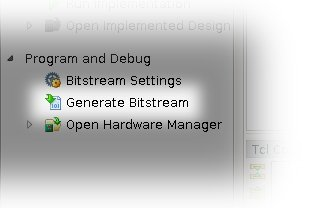
After the project has been created, start an implementation: Click “Generate Bitstream” (or “Generate Device Image”) on the Flow Navigator bar to the left.
A popup window that asks if it’s OK to launch synthesis and implementation is likely to appear – pick “Yes”.
Vivado runs a sequence of processes. This takes a few minutes normally. Several warnings are issued, none of which are classified critical (but some critical warnings may still remain in the logs from the execution of the Tcl script).
A popup window will appear, which will say that the implementation of the bitstream was completed successfully. It will give choices of what to do next. Any option is fine, including “Cancel”.
The bitstream file, xillydemo.bit, can be found at vivado/xillydemo.runs/impl_1/. For Versal FPGAs, the file is xillydemo.pdi instead.
The implementation is never expected to fail. There is however a one error condition worth mentioning:
An error saying “Timing constraints weren’t met” can happen when custom logic has been integrated. This means that the tools failed to achieve the requirements for timing. In this case, the design is syntactically correct, but needs corrections to make certain paths fast enough with respect to given clock rates and/or I/O requirements. The process of correcting the design for better timing is often referred to as timing closure.
A timing constraint failure is commonly announced as a critical warning, so Vivado doesn’t prevent the user from producing a bitstream file that doesn’t guarantee the FPGA’s reliable behavior. To prevent the creation of such a bitstream, a timing failure is turned into an error by virtue of a small Tcl script, namely “showstopper.tcl”, which is automatically executed at the end of a route run. To turn this safety measure off, click “Project Settings” under “Project Manager” in the Flow Navigator. Choose the “Implementation” button, and scroll down to the settings for “route_design”. Then remove showstopper.tcl from tcl.post.
Vivado users may skip the following sections, and go directly to paragraph 3.6.
3.4 Setting up AMD’s PCIe IP core
This part relates only to the ISE toolchain, for FPGAs other than Spartan-6. If Vivado is used, please refer to paragraph 3.3. Those working with Spartan-6 FPGAs may jump directly to paragraph 3.5.
A somewhat peculiar organization of the Coregen IP core for PCIe doesn’t allow the inclusion of the XCO file in the implementation project, but instead, the core generating software creates Verilog files for inclusion. This is the case only when working with Virtex-5, Virtex-6 and series-7.
Virtex-5 FPGAs require some special handling of the XCO files. See paragraph 4.3.5.
Please find the project file (.xise) in the blockplus directory or the pcie_core directory (as found in your bundle) and double-click it to open ISE. Under “Design Utilities”, click “Regenerate all cores” and wait for the process to finish. Then just close ISE. There is no need for any further action.
This procedure generates a set of Verilog files, which are wrappers for the AMD PCIe core. These files are used by the project that creates the demo bundle’s bitstream. The files are generated in Verilog, regardless of your choice of Verilog or VHDL as the preferred language.
There is no need to manually include these Verilog files in the main project, but these files have to be generated once before the implementation of the entire project is attempted. There is no need to repeat this procedure, not even before a repeated implementation of the main project.
3.5 Generating the bit file with the ISE suite
When working with an FPGA that belongs to the Virtex or series-7 families, please make sure you’ve prepared the PCIe wrapper, as instructed in paragraph 3.4 above.
Depending on your preference, double-click the ’xillydemo.xise’ file in either the ’verilog’ subdirectory or the ’vhdl’ subdirectory. ISE will start running and open the project with the correct settings. ISE shouldn’t complain that any file is missing. If it does, and the FPGA family is one of series-7 or any Virtex family, it’s likely that your PCIe wrapper wasn’t prepared as mentioned in paragraph 3.4.
Click “Generate Programming File” to start the implementation.
During the first implementation, there is a need to regenerate two or three AMD Coregen IP cores. This process is time-consuming, but fortunately it’s done only once. A popup window looking something like this will appear two or three times:
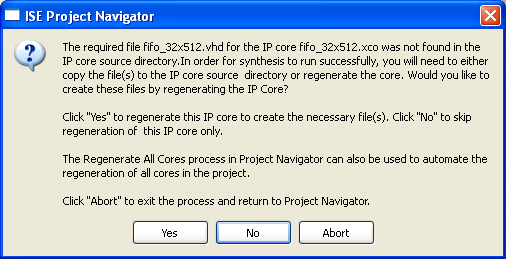
Click “Yes” on all of these.
The procedure will produce several warnings (an implementation of an FPGA project always does) but should not present any errors. When the process is finished, the bitfile can be found as xillydemo.bit.
Always verify that the timing constraints were achieved by looking for the following sentence in the log (somewhere near the end):
All constraints were met.
This is crucial, in particular after making changes in the project. If the constraints aren’t achieved, the tools will still generate a bitfile, but the FPGA may behave in an unpredictable manner (possibly as a result of temperature changes within the allowed temperature range).
A similar message can be found in ISE’s design summary.
Failing to achieve timing constraints could be a result of adding logic that isn’t fast enough to withstand the rate of bus_clk. But if a failure occurs for no apparent reason, it could be that AMD’s tools made a poor initial guess when attempting to place the logic components on the FPGA’s logic fabric, and the optimization algorithm running later on couldn’t fix this.
The latter case can be fixed by changing the placer cost table figure (which is just a seed for the randomness of the initial placement). In the Processes pane inside ISE Project Navigator, right-click “Map” and pick “Process Properties...”. Make sure that the Property display level is “Advanced” and change the “Starting Placer Cost Table” to just any other number that hasn’t been tried yet. The magnitude of this number has no significance. Then restart with “Generate Programming File”.
IMPORTANT:
On some ISE versions, notably ISE 14.2, the build in the verilog/ directory may fail with an error saying ERROR:HDLCompiler:687 -
“C:/try/xillybus-eval-kintex7-1.1/verilog/src/fifo_32x512_synth.v” Line 54: Illegal redeclaration of module fifo_32x512. (or similar). This is due
to a bug in AMD’s tools. To work around this, delete fifo_8x2048_synth.v and fifo_32x512_synth.v in the src/ directory, and restart “Generate
Programming File”. Several warnings will indicate that the tools fail to find these files, but the implementation should nevertheless run
through properly.
3.6 Loading the bitfile
In early development stages, it’s recommended to load the FPGA via JTAG. On most boards, a simple USB cable between the computer that runs Vivado and a USB connector on the board’s panel is enough. Those who work with ISE, use iMPACT for loading the bitfile.
Please refer to your board’s instructions on how to load the FPGA via JTAG.
For XillyUSB projects, the FPGA can be loaded and reloaded at any time, even while the USB interface is connected to a working computer.
With PCIe projects, the FPGA must be loaded with the bitfile before the computer is powered up: The computer expects the PCIe peripheral to be in a proper state when it powers up, and may not tolerate any surprises afterwards.
Therefore, do not reload the FPGA as long as the host is running. Even though the PCIe specification requires support for hotplugging, motherboards don’t normally expect a PCIe card to disappear and then reappear. Accordingly, some motherboards may not respond correctly. Nevertheless, reloading of the FPGA, while the operating system is running, works on some motherboards.
Xillybus’ driver is designed to respond sanely to hotplugging, however there is nothing to assure the computer’s general stability. This is discussed on this page:
https://xillybus.com/doc/hot-reconfiguration
If the FPGA powers up and is loaded from a flash memory along with powering up the computer, it’s essential to ensure that the FPGA is loaded quickly enough, so the PCIe device is present when the BIOS scans the bus.